The scanner waits in one room; documents turn up everywhere. An invoice appears at a mechanic’s counter, a form arrives during school pickup, and a discharge summary leaves a hospital in a bag. Each sheet is supposed to make its way home. Many stop in a glovebox or on the table beside it.
Documents travel in the other direction too. Someone asks for last year’s report, an insurance policy, or a booking confirmation while the archive is on a server at home. The phone is available; the network may not be.
Suchi Companion captures documents for the paired archive and searches it when the server can be reached. It stores only documents selected with Save offline. Requests go directly to the paired server; Companion provides no hosted document relay and does not mirror the full archive.
Pair one phone with one archive
Pairing begins in Suchi’s web app. Open Settings → My account → Mobile app, create a one-time QR code, and scan it with Companion. The code expires after five minutes and works once. Before connecting, Companion shows the server address and device name for confirmation.
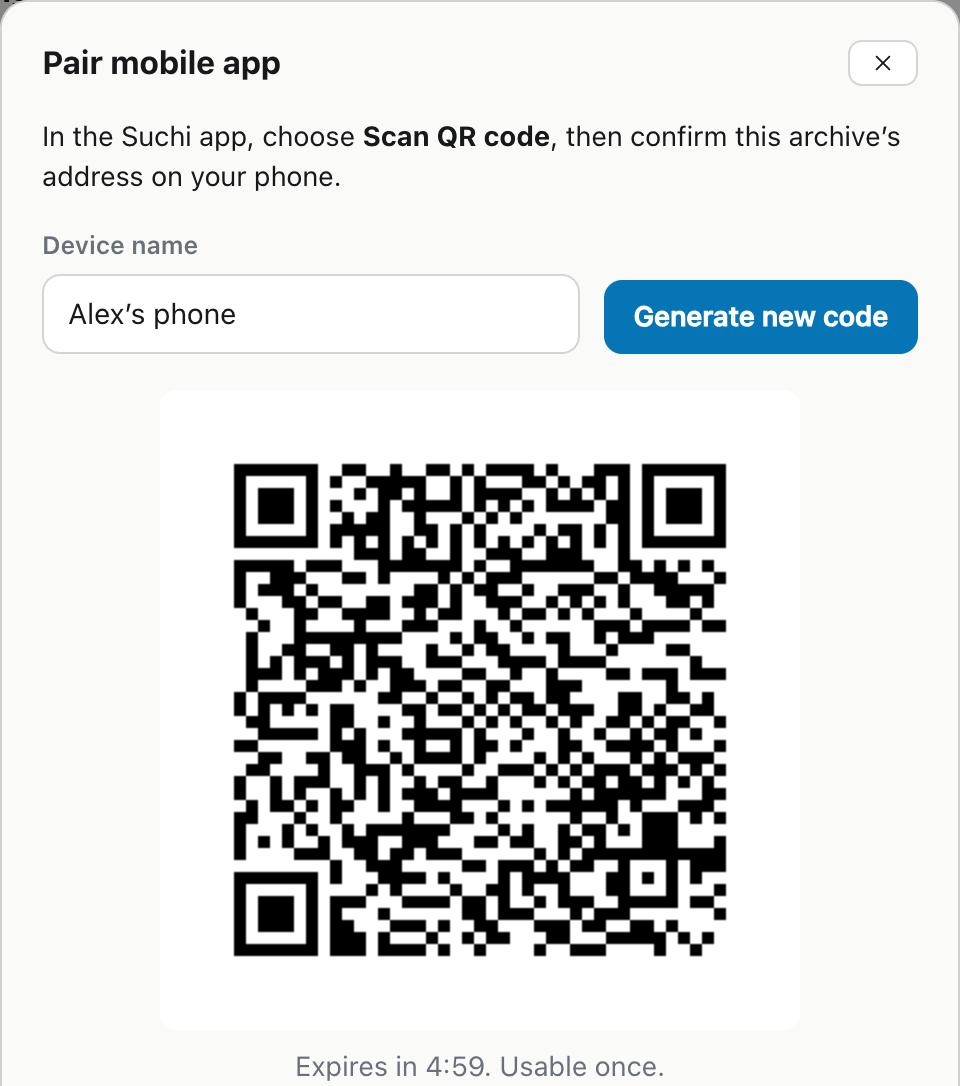
One Companion installation has one active pairing. Its captures, queue, searches, saved files, and responses stay tied to that server, account, and filing system. To move to another archive, sign out and pair again. Queued documents cannot drift between destinations.
Companion connects directly to the server chosen by the person who runs the archive. Requests do not pass through a Suchi document cloud. You still decide how that server is reachable: on a private network, through a VPN, or with another deployment arrangement.
Capture a document at the counter
At the mechanic’s counter, Companion can scan the invoice or take a photo. In Scanner mode it opens the phone’s built-in document scanner. The scanner finds the page edges, captures once the page is steady, and straightens each page, so several pages can go into one scan. Before saving you can drag a corner the scanner missed or switch to a grayscale filter. Companion then turns the pages into one PDF. Companion does not need to put a copy in the phone’s photo library first. Its protected queue sends the capture through the server’s normal processing path, where it enters the same Inbox and filing loop as a browser upload or watched-folder file.
A generic scanner app and synced folder can also move a page home. A photo may still be waiting in the scanner app, sync folder, or server watcher after it appears finished. Companion shows failed items and captures waiting for account assignment until you retry, assign, or explicitly discard them.
Uploads progress only while Companion is in the foreground and the archive is reachable. Closing or backgrounding the app does not guarantee that the queue will continue. A capture made without a route home remains visible for a later retry; it is not reported as archived.
When connectivity is poor, the invoice stays in the protected queue until the server acknowledges it. The page can leave the counter without entering the glovebox, while its actual upload state remains clear.
Search the archive when the server is reachable
The same client can browse and search the paired archive. A policy, report, referral, or booking remains subject to two things: a working route back to the self-hosted server and the account’s permission to see it.
A VPN works well for reaching a private server, but the connection can drop in a basement, a lift or an underground car park. If a document must be available regardless of the network or server, save it offline before leaving.
Save a small working set for offline use
Offline storage is for documents chosen in advance, rather than a complete copy of the archive. A driving licence may be worth saving; fifteen years of statements probably are not.
Save offline stores the document’s normal full-download representation in protected, backup-excluded, account-scoped storage. It is a complete verified copy, not a recently viewed cache or a partial HTTP range. Once saved, it opens with the server unavailable or the phone in airplane mode.
For each saved file:
- one offline payload may be no larger than 64 MiB;
- Companion must be able to finish the bounded write while leaving 512 MiB free;
- cancellation or a failed refresh leaves the previous verified copy intact;
- signing out separates the account from those saved files.
A trip might call for passport scans, travel insurance, a prescription, hotel bookings, or a few vehicle documents. The rest stays on the server instead of becoming a full mirror on a phone that can be lost.
Saved files and queued captures cover different failures
A saved document is already a complete copy on the phone, so it remains available when the server or network is down. A new capture is not yet in the archive: it still needs foreground time and a reachable server. Calling both actions “offline sync” would hide the important difference.
At the mechanic’s counter, the new invoice stays visible in the queue until the server accepts it. Before the next appointment, the insurance policy can be saved as a verified offline copy. Everything else remains on the server and needs a working connection from Companion.